
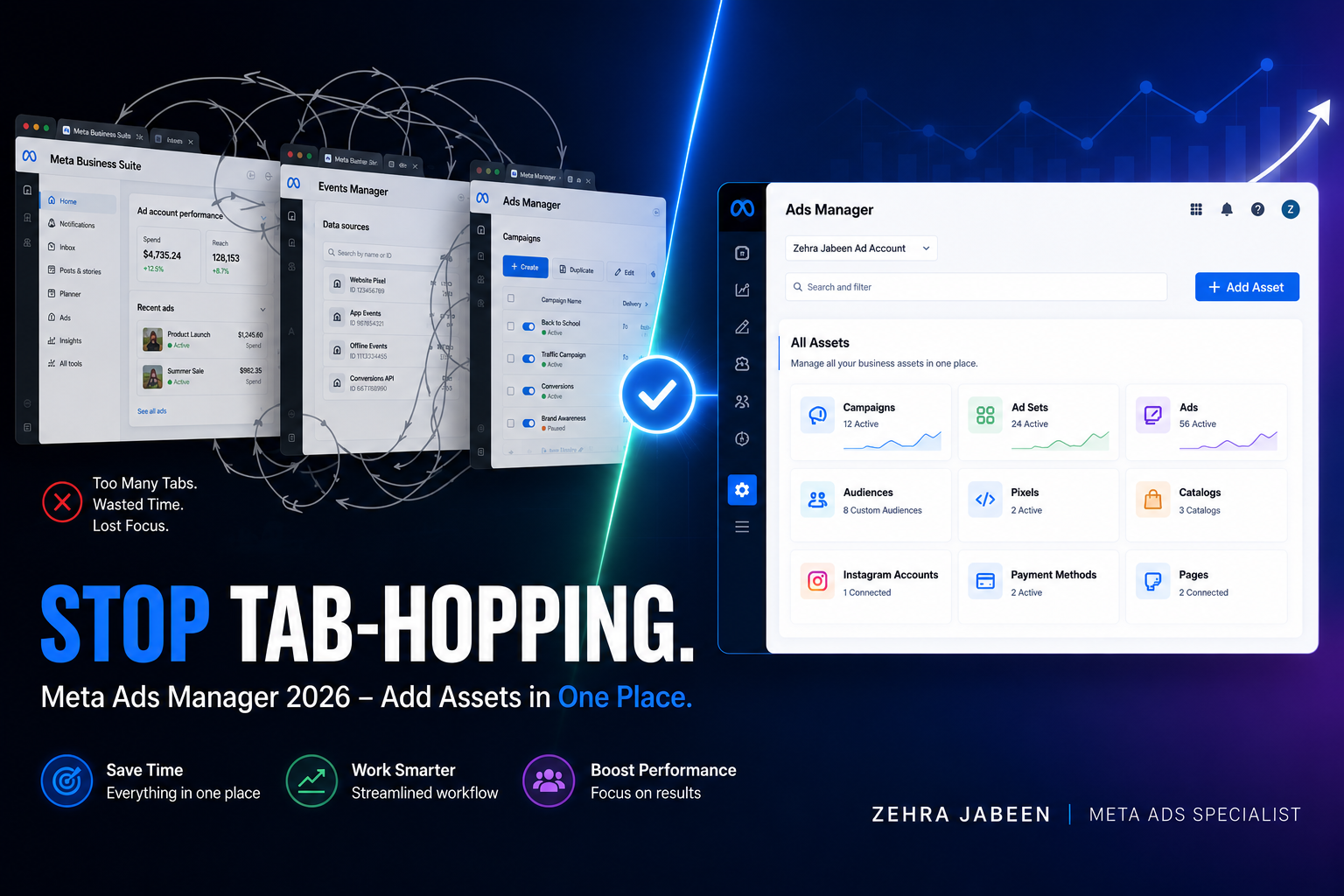
Meta Ads Manager Update 2026: Add & Manage Ad Accounts Without Leaving Ads Manager
Meta has rolled out a Business Portfolio panel built directly into Ads Manager, so you can add, claim, or request ad accounts without switching to Business Suite. Here’s exactly how it works.
If you manage Meta ad accounts for more than one business, you’ll know the old drill: you’re deep in Ads Manager, you need to add a new ad account or give a client access, and suddenly you’re bounced out to Meta Business Suite, into Business Settings, hunting for “Accounts,” then “Ad Accounts,” just to do something that should take ten seconds.
Meta has fixed that. Ads Manager now has a Business Portfolios panel built directly into it, so you can add, claim, or request an ad account without ever leaving the screen you’re working in. For agencies and marketers juggling multiple portfolios — training providers, salons, ecommerce clients, whoever — this is a genuinely useful time-saver, and worth updating your onboarding SOPs for.
Adding a Meta Ad Account: Old Way vs New Way
Same task, two very different routes through Meta’s tools
Why This Update Matters
Previously, adding a new asset to a Meta Business Portfolio meant:
- Leaving Ads Manager
- Opening Meta Business Suite
- Navigating to Settings → Accounts → Ad Accounts
- Finding the right business portfolio
- Clicking Add, then choosing your action
That’s five steps and a full context switch, every single time you onboard a client or spin up a new ad account. If you’re managing several business portfolios at once (agencies routinely are), it adds up fast.
The new panel collapses that into a couple of clicks, inside Ads Manager itself, with your portfolios listed on the left and the ad accounts for whichever one you select shown on the right — so you can see everything and act on it from one place.
Step-by-Step: How to Add a New Ad Account in Ads Manager
Open the Business Portfolios panel
From inside Ads Manager, open the account/settings area (the gear icon) to bring up the Business Portfolios view. You’ll see a left-hand sidebar listing every business portfolio you have access to — your own portfolio plus any client portfolios you manage — each showing how many ad accounts sit under it.
Select the portfolio you want to work in
Click the relevant business portfolio in the sidebar. The right-hand panel updates to show that portfolio’s ad account(s), including the Ad Account ID, so you can confirm you’re in the right place before making any changes.
Click “+ Add”
In the top right of the panel, click the Add dropdown. This is where the real time-saving happens — you get four options in one menu, without switching tools.
Give Yourself Access
Portfolio already has ad accounts you’re not assigned to yet.
Best for: joining an existing team setupCreate a New Ad Account
Starting fresh for a new client, campaign, or business unit.
Best for: onboarding a brand-new clientAdd an Existing Ad Account
You already have access and want to move it into this portfolio.
Best for: consolidating accounts you ownRequest Access
You need to run ads on an account owned by another business.
Best for: agencies managing client accountsChoose your path and complete the flow
Pick whichever of the four options fits your situation. Each one opens a short guided flow (enter the account name and time zone for a new account, or the Ad Account ID for claiming/requesting one), and you’re done — still inside Ads Manager.
Old Way vs New Way
| Old method (Business Suite) | New method (Ads Manager) | |
|---|---|---|
| Where you start | Meta Business Suite | Ads Manager |
| Steps to reach “Add” | Settings → Accounts → Ad Accounts → Add | Gear icon → select portfolio → Add |
| Tools needed | 2 (Ads Manager + Business Suite) | 1 |
| Best for | Full business settings, permissions audits | Quick account additions while running ads |
Worth noting: this doesn’t replace Business Suite. For deeper work — assigning granular permissions, managing Pages and Instagram accounts, domain verification, or auditing who has access to what — you’ll still want Business Settings. But for the day-to-day task of adding or claiming an ad account, you no longer need to leave Ads Manager to do it.
What Else Has Changed in Meta Ads Manager Recently (2026)
This account-access update lands alongside a run of other changes Meta has pushed through Ads Manager this year — worth knowing if you haven’t logged in for a while:
- Flexible format has moved. It’s no longer a standalone option in ad setup; that “let Meta pick the format” behaviour now lives inside Advantage+ creative.
- Collection has moved too — it now sits under Ad Creative, in Format display options, rather than the main Format list.
- Customer Lifecycle Strategy is a new ad-set-level setting on manual Sales campaigns, letting you optimise specifically for new customers rather than people who’d have bought anyway. It’s a limited rollout, and behaves more like a manual audience-exclusion tool than full automation.
- Meta Business Agent expanded to Instagram (alongside WhatsApp and Messenger) and is now available to businesses of all sizes globally — handling customer queries, product recommendations, appointment booking, and lead qualification before handing off to a human.
- Location fees are being introduced on invoices for ads delivered into certain countries (Austria, Turkey, France, Italy, Spain, and the UK among them), sitting on top of your ad spend as a separate line item.
If you’re managing accounts for multiple businesses — as many training providers, salons, and small agencies do — it’s worth building a monthly 15-minute check into your process: confirm nothing in Ads Manager has quietly moved on you, and that billing matches what you expect once location fees land.
Final Thoughts
Meta rarely announces these interface changes with any fanfare — they just appear one day, and you either notice or you build a workaround for a problem that no longer exists. This Business Portfolio panel inside Ads Manager is a small change, but for anyone managing several ad accounts across different businesses, it removes a genuinely annoying bit of friction from account setup and access management.
Want your Meta ad accounts set up properly?
Account structure, portfolio access, and ad performance — sorted, so you’re not the one chasing down permissions.